Getting Started
Just looking for basic information about what Drehmal is, or help on setting up your Drehmal world? This page can help with that!
What Is Drehmal?
Drehmal v2.2: Apotheosis is the third major version of Drehmal: Primordial, a survival-adventure Minecraft map initially released in early 2020. This world, covering over 12,000 by 12,000 blocks, heavily pushes the player to explore. Over dozens of hours, players will discover regions with fully custom terrain, exciting vanilla-friendly gameplay additions, a main story concerning the mysterious disappearance of the most powerful empire to ever roam the world, and intricate, extensive lore.
Drehmal is free to download and play, as long as you own Minecraft!
Installation Guide
Drehmal: Apotheosis can be downloaded from the official drehmal.net website, at this specific link. That page already provides a brief overview of installation, but this article will further elaborate on the process of properly setting up your Drehmal save.
Drehmal Installer
The simplest way to install Drehmal is using the custom installer, provided on the Downloads website page. The installer is a program which will automatically download the world file, the Fabric mod loader, all required mods, and the resource pack. It will also create a new instance in the vanilla Minecraft Launcher by creating a new .minecraft_drehmal folder secondary to your default .minecraft folder. This new folder will be used when you select the "Drehmal: Apotheosis" profile from the vanilla launcher's bottom-left corner, storing your save, the necessary resource pack, the world's datapack, all required mods, your screenshots while taken in-game, and so on. Third-party launchers such as TLauncher or Prism can run Drehmal, but the installer will not recognize them, and you will need to install Drehmal manually to play using those launchers.
When first launching the installer, if you are on Windows, you will receive a "Windows protected your PC" warning. Simply click "More info" and then "Run anyway" to launch the installer.
Clicking the forward arrow button on the installer will bring you to three options: Singleplayer Installation, Multiplayer Installation, and Server Installation.
Singleplayer Installation includes everything that you need to play Drehmal on your own. If you're playing by yourself, select this option. You will be able to specify a different Drehmal Minecraft directory than .minecraft_drehmal if you would like, and you will be asked how much RAM you want to allocate to Drehmal. The recommendation for this number varies based on your machine, but typically, it is reasonable to assign about half of your total RAM to the installation. Assigning either too little (less than 4 GB) or too much (over 10-12 GB) is not recommended, and may result in performance issues.
On the next screen, you will be prompted to download shaders, if you would like to. Shaders are completely optional, and make the visuals of Minecraft more refined, but may negatively impact your performance.
The next screen contains the downloads for the Drehmal instance. Simply press each individual download button, wait for them to finish downloading and extracting, and then press the forward arrow to progress to the next page. At this point, you're done! Open up the Minecraft Launcher, select the "Drehmal: APOTHEOSIS" profile from the bottom left drop-down menu (if it isn't already selected by default), and hit play! The only singleplayer world should be a copy of Drehmal, which you can start playing now!
Multiplayer Installation includes everything you'll need as a player on a multiplayer Drehmal server, if you're not the one setting up the server itself. This includes the mods, Fabric, and the resource pack, but notably, it does not include the custom world itself, which is the most important part! The process for this option is roughly the same as the singleplayer installation, just without a map download.
Server Installation includes the map and a Minecraft server jar, a necessary file for running a server. Server jars for Drehmal can be Fabric or Vanilla. This path will also allow you to toggle some options, such as allowing or disallowing PvP and setting a maximum number of players for your server. Follow the instructions shown on the installer! Additional instructions for multiplayer setup can be found in the FAQ page.
Modrinth Installation
Added as an option on May 5th, 2025, Drehmal can also be set up directly through a Modrinth instance. Using the Modrinth launcher, use this instance to set up all of the required mods and the resource pack. Due to file size limits, this will not be able to install the world file itself, so you will need to manually install the world and place it into the appropriate folder (AppData/Roaming/ModrinthApp by default, in the same location as AppData/Roaming/.minecraft).
Modrinth Installation is a little simpler than the installer, but does require this one manual aspect.
Manual Installation
If you're using a third-party launcher, or if the installer just isn't working for you, then you may need to install Drehmal manually. Don't worry, it's not too complicated, but you will need to move some things around yourself.
You'll need to download and install Fabric for 1.20.1, and create a profile to launch Minecraft with this Fabric version. Next, navigate to the "File Downloads" portion of the Downloads page and download the world, the resource pack, and the mods.
Download the World File, then extract it using a tool like WinRAR or 7zip. Place the extracted world folder into the "saves" folder of your .minecraft folder. The world file can be found here.
Download the Resource Pack from the downloads page or this link. Place the resource pack (zipped or extracted) into the "resourcepacks" folder of your .minecraft folder. It should appear as an "Available" resource pack when you load the game; you must activate it by moving it to the right ("Selected").
Finally, you will need to download the mods. All Drehmal 2.2 mods are client-side only, meaning that any player needs to have them, but if you're on a multiplayer server, they should not be installed on the server itself. There is not a single location to download all mods at this time, so you will need to download each mod individually, from the list provided on the website. Ensure that you download each of these mods for the current version of the map (Fabric 1.20.1), and place them into the "mods" folder of your .minecraft folder.
At this point, if you have downloaded the world, resource pack, mods, and Fabric, then you should be ready to play! Ensure that you launch your installed Fabric version, and the world should be visible from the "Singleplayer" menu.
Settings Room
When you first boot up a fresh Drehmal: Apotheosis world, you'll find yourself in a black room with gray pillars. This is the Settings Room! Walk forward to read a bit about the map, including some important information, before starting your playthrough.
Once you've read everything, approach the white terminal structure beneath the "START" sign, and right-click the block in the center that says "Initialize". This should take you to the Stasis Facility, beginning your journey through Drehmal!
Important Information & Settings
To your left, you'll find important information regarding the map's settings and relevant instructions.
A collection of signs on the wall is labeled "IMPORTANT INFORMATION". They read as follows:
- This map is made for version 1.20.1. If you are using realms, or are playing on any version except 1.20.1, things will break.
- Do /trigger Settings to change stuff at any time!
- The Nether is disabled, but all Nether items are still obtainable.
- mobGriefing is off by default. Villagers must be bred manually.
Wiki Curator Note: It is unclear what exactly "villagers must be bred manually" means, as there does not appear to be a way to breed villagers when mobGriefing is off without simply spawning them in. If you must do so, use
/summon, not spawn eggs, as spawn eggs have another use in Drehmal which may result in minor sequence-breaking.- doFireTick is disabled by default.
- keepInventory is on by default. If you turn it off, there are some places where you cannot get your items back.
- Since you no longer lose items on death, you now lose all XP.
Wiki Curator Note: This can be configured using /trigger Settings.
- Minimum render distance is 8 and simulation distance must be equal to render distance in story areas of the map.
- NEVER use /kill @e. This will break many parts of the map.
Wiki Curator Note: In general, you should not use ANY commands that involve @e (such as /kill or /tp) unless you know EXACTLY what you are doing, as there are many custom entities in Drehmal that the map relies upon.
Opposite this wall is a button labeled "OPEN MAP SETTINGS MENU", which will run the /trigger Settings command and open the Drehmal settings menu. This menu appears in the in-game chat, and can be accessed at any time while playing the map by simply entering this command into chat. Options can be selected by clicking on them in chat, and they provide additional information when hovered over.
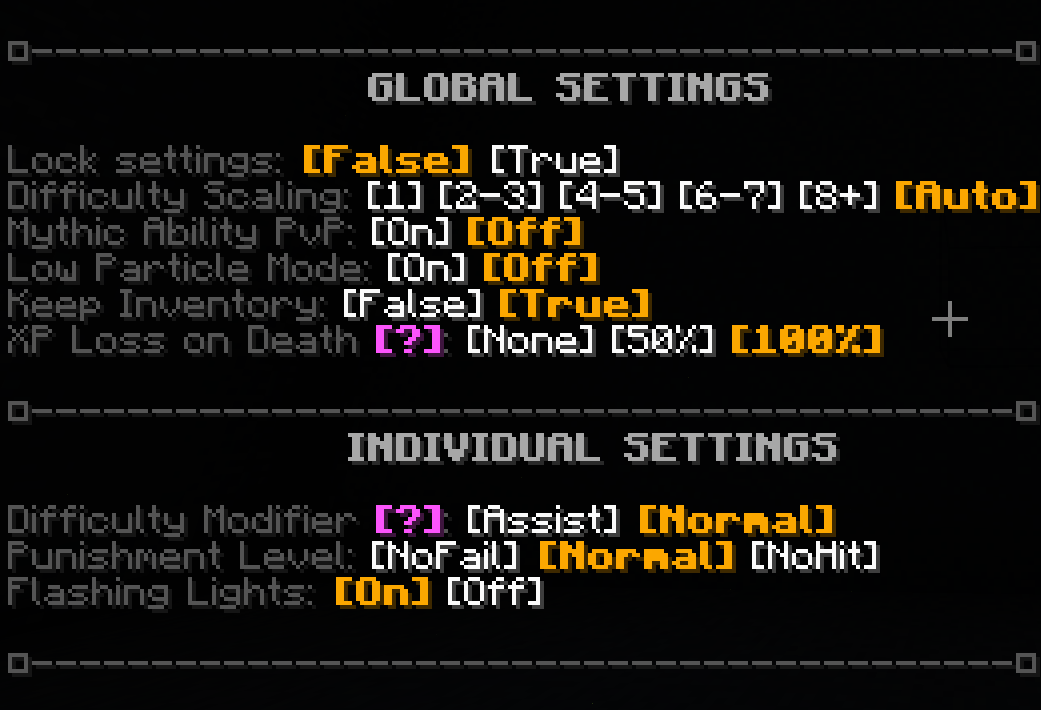
The /trigger Settings menu, with all default options selected.
The following is an explanation of the settings on this menu. Default options are denoted in bold.
GLOBAL SETTINGS
Lock Settings: [False] [True] - When set to [True], locks the current settings for all players. Available to world host on multiplayer servers.
Difficulty Scaling: [1] [2-3] [4-5] [6-7] [8+] [Auto] - Determines the health and damage scaling of certain enemies based on how many people are playing. By default, this is set to Auto, meaning that it will adjust depending on how many people are currently on the world.
Mythic Ability PvP: [On] [Off] - When set to [On], allows the abilities of Mythical Weapons to harm other players, and prevents this from happening if set to [Off]. Enable if you want to be able to fight with others using Mythical Weapon abilities, or disable if you'd prefer to avoid friendly fire.
Low Particle Mode: [On] [Off] - When set to [On], decreases the number of particle effects in Drehmal, potentially improving performance.
Keep Inventory: [False] [True] - The keepInventory gamerule from Vanilla Minecraft. If set to [True], players will not lose their items on death.
XP Loss on Death: [?] [None] [50%] [100%] - The [?] at the far left explains this setting: "Drehmal is recommended to be played with keepInventory on. However, XP is still lost on death. Here, you can change the severity of that loss."
INDIVIDUAL SETTINGS
Difficulty Modifier: [?] [Assist] [Normal] - The [?] at the far left explains this setting: "Modifies the game difficulty to cater to different playstyles. This is distinct from vanilla Minecraft difficulty." Selecting the [Assist] option gives the player a permanent 40% reduction to incoming damage, and doubles the amount of damage they deal to other entities.
Punishment Level: [NoFail] [Normal] [NoHit] - [Normal] simply means that the player takes damage as usual. Activating [NoFail] gives the player nearly complete damage immunity (with the exception of damage due to falling into the void and /kill commands). [NoHit], on the other hand, can be used for a challenge run, making any amount of damage kill the player instantly.
Flashing Lights: [On] [Off] - Determines whether some effects with flashing lights are shown. Set [On] by default, but can be turned off if you have any photosensitivity issues.
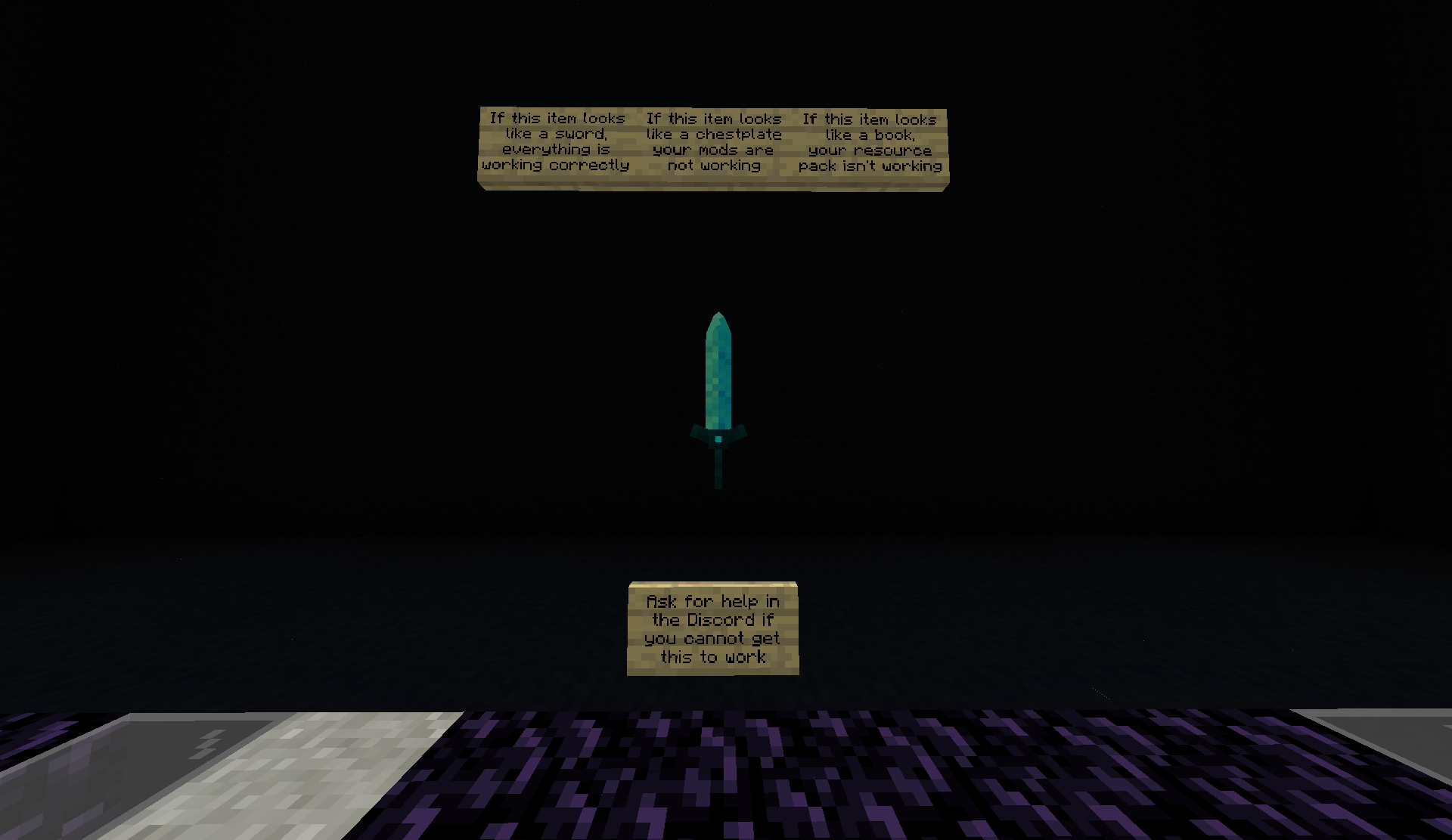
At the end of this wing is an armor stand which holds an item, used to test if your visuals are working properly. If the item looks like a blue sword, as in the above photo, everything is working correctly.
If it looks like a chestplate, then your mods are not working. Ensure that you have all of the mods from the list downloaded, that they are for the correct version of Fabric/Minecraft, that they are in the proper folder, and that you have launched the game using Fabric.
If it looks like a book, then your resource pack is not working. Ensure that you have downloaded the most recent version of the resource pack, that it is selected and at the top of the list on the right side of the Resource Packs screen, and that you do not have other (potentially conflicting) resource packs installed. You may also try the secondary resource pack download, found at the same link as the regular manual download.
The rest of this wing contains signs that link to the Patreon, Discord, Website, and Twitter, as well as the beginning of the notoriously difficult Lobby Parkour.
Credits
To your right, you'll find the credits, with the heads and names of each of the developers of Drehmal v2.2. Check them out!
Gameplay: Where to Start
Drehmal is an open-world game that does not follow a strict linear path for the majority of your playtime. Progress is driven by exploration, as you'll quickly come to discover tall white and purple towers that serve as fast travel points, with roughly one in each major biome, or region. While you are free to focus on exploring however you wish, main story progress comes by finding, climbing, and manually re-linking these towers to the Terminus Network, and they are found all across the world. Keep an eye out for them, and at certain milestones, you'll be prompted to visit specific story locations.
The world is in a bit of a dark age, and while there were certainly once advanced civilizations here, there will not always be roads or clear markers to tell you where to go. That doesn't mean that you need to just wander aimlessly, but you will have to wander a bit off the beaten path in order to make your way around. That's intended!
At towns, special villagers known as Adventuring Merchants will sell you regional and world maps that can aid you in finding your way around the vast continent, as well as bundles and Runic Vessels (Shulker Boxes) in order to help manage your inventory as you loot your way through Drehmal.
Example Starting Path
While there is no "correct" way to play Drehmal, the following is an example of a path you can take through the very early stages of the game, in order to get a feel for the gameplay loop of Drehmal.
Once you begin the story, you'll find yourself in an ancient temporal stasis facility, located approximately in the center of the massive continent that is the world of Drehmal. Make your way out to the surface (check out our Stasis Facility article if you're having trouble with that), and you'll find yourself in the world!
As soon as you get to the surface, you'll find yourself in the Capital Valley region, next to the Primal Caverns point of interest, with a path leading in the other direction as well. Following this path will take you past an abandoned chapel with signs that spell out the creation myth of this realm. Following the path further, you will find the first Terminus tower: the Capital Valley tower. Climb it, hit one of the buttons on the top, and you'll be warped to Drehmal's fast travel hub, the Terminus. Walk into the compass dispensary (the only lit part of the Terminus), and you'll be given a lodestone compass by the AI that runs the facility. You'll then be able to warp back to the Capital Valley tower, and keep following the path.
Eventually, the path will continue on to Drabyel, the first major town that most players find. Explore the town, reading the lore books that it has to offer, as well as paying its Adventuring Merchant and Runic Blacksmith a visit. Head back down the path and go the other way at the fork, following the compass you were given in the Terminus, towards the ruined Avsohmic capital of Av'Sal. Explore the city, defeating the Mihkmari enemies that have occupied its ruins, and make your way to the central island, where the compass leads to a terminal, just like the one you right-clicked to start the map. Click it, and the city's holotext database will come back online, allowing you to read a little bit about the people who lived here. While you're here, check out the Av'Sal Repository, a hub for knowledge you'll gain over the course of the main story, which also contains a piece of an immensely powerful weapon.
Make your way out of the capital, following the path further south, away from Drabyel, into your second region: Palisades Heath. There'll be another tower to collect here, as well as a major point of interest: Drehua Temple. Here, the road ends, but you can keep going further south if you'd like, pushing towards the beaches and prismarine jungles of Lorahn'Kahl. Or you could turn back and head east from Drabyel, making your way into the densely forested North Heartwood. You could also follow another path to the north, forking off either towards the autumnal forest of Merijool to the northwest or the massive flowers of Akhlo'Rohma to the northeast. You can even climb straight over the western mountain range to the Tharxax Plains, if you really want to!
Progress is made by increasing your network linkage (finding and connecting more towers), but you can do so at whatever pace, and in whatever order, you'd like (for the most part). Few locations are truly a direct part of the main story, but that doesn't mean there isn't that much story—rather, it means that many places which are technically optional are incredibly detailed, packed with useful rewards, and lore-relevant. Explore to your heart's content!